> For the complete documentation index, see [llms.txt](https://wiki.lucysecurity.com/llms.txt). Markdown versions of documentation pages are available by appending `.md` to page URLs; this page is available as [Markdown](https://wiki.lucysecurity.com/application-reference/settings/common-system-settings/filter-settings.md).
# Filter Settings
## Introduction
Filters in Lucy provide an additional layer of protection to minimize false positives and control access to the platform's web pages. These filters, applicable both at the campaign and system-wide levels, enable you to allow or block specific IP addresses and user-agent strings. This feature enhances security by preventing unauthorized access and mitigating false-positive clicks caused by antivirus tools and spam filters.
{% hint style="info" %}
Navigate to **Settings -> Common System Settings -> Filter Settings**
{% endhint %}
***
## Policies
{% tabs %}
{% tab title="Allow All" %}
The **Allow All** setting grants unrestricted access to the campaign, regardless of the recipient's IP address or browser type. This default configuration removes access limitations, maximizing reach and engagement with your target audience. It offers an inclusive approach, encouraging broad participation without applying any technical filters.
{% endtab %}
{% tab title="Allow Only" %}
The **Allow Only** setting permits access exclusively to recipients or clicks that match the IP address or browser rules you define. All other recipients whose details do not meet these criteria will be blocked. This setting is ideal for creating highly targeted campaigns, where access is reserved for a predefined audience based on specific IP addresses or browser types.
{% endtab %}
{% tab title="Deny For" %}
The **Deny For** setting restricts access for recipients or bot clicks that match the IP address or browser rules you specify. All other users whose IP addresses or browsers do not meet these rules will be granted access. This feature is particularly useful for filtering out unwanted traffic and ensuring your campaign reaches only the intended audience.
{% endtab %}
{% endtabs %}
## Campaign Filters
Campaign filters are pre-defined lists of rules that can be loaded in to any campaign.
### Create a Filter
To create a campaign filter list, go to the **Campaign Filters** tab and select **+ Add New**. Give the list a name and client, then **Save**. Next select a policy and add IP addresses and/or user-agent strings to it. When you're done, click **Save** again.
{% hint style="info" %}
values can be individual addresses or CIDR ranges, e.g. 127.0.0.1 or 127.0.0.1/24. Only IPv4 is supported.
User-Agent strings will be matched by the rule if the string is contained in the request.
{% endhint %}
### Import Filters
You can also import rules from a CSV.\
To download a sample CSV file click the tooltip icon next to the import button:
### Add Filter to a Campaign
After creating your campaign filters you can add them to any campaign by going to that campaign's **Filter Settings**.
{% hint style="info" %}
Navigate to **Campaign -> Advanced Settings -> Filter Settings**
{% endhint %}
Here you can add filters manually or import the pre-defined rules you've created:
{% hint style="warning" %}
Importing a pre-defined filter overwrites all existing filters, so be sure to import your filter first before adding any additional ones.
{% endhint %}
***
## System Filters
System filters are applied to every campaign.
### Create a Filter
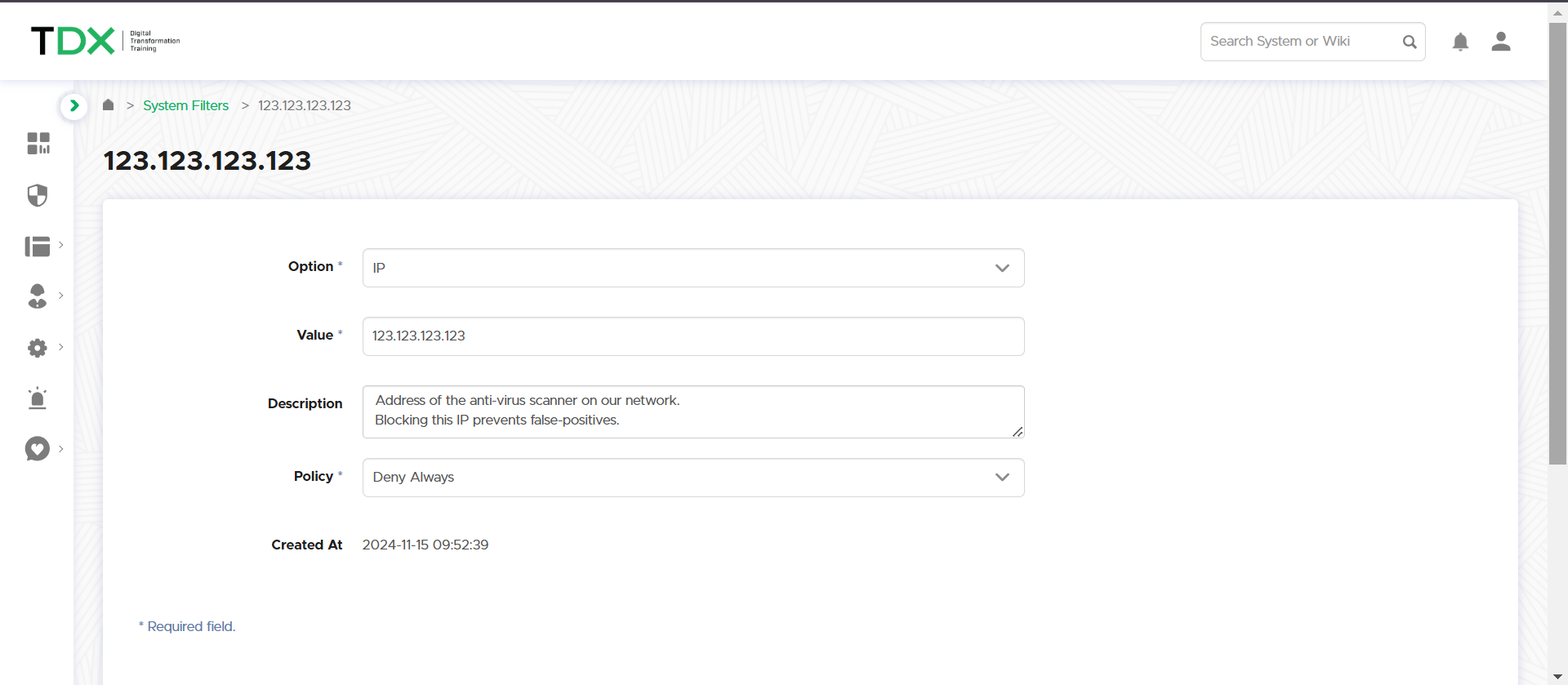
To create a system filter, go to the **System Filters** tab and select **+ Add New**. Select either IP or User-Agent and enter a value and description for the filter. Then select a policy type. When you're done, click **Save** at the bottom of the page.
{% hint style="info" %}
IP values can be individual addresses or CIDR ranges, e.g. 127.0.0.1 or 127.0.0.1/24. Only IPv4 is supported.
User-Agent strings will be matched by the rule if the string is contained in the request.
{% endhint %}
### Automatic Filters
Lucy runs a background service that automatically detects bot-like behavior and adds the source IP(s) to the filter list with a "Deny Always" policy.
{% hint style="danger" %}
If users are reporting that they cannot access content, check this page for their source IP. If they are using a VPN (and therefore connecting from the same source IP as many other users), Lucy may have blocked the IP.
To resolve this permanently simply flip the policy from "Deny Always" to "Allow Always". Better yet, create an Allow policy for your VPNs in advance to avoid this issue entirely.
{% endhint %}
---
# Agent Instructions
This documentation is published with GitBook. GitBook is the documentation platform designed so that both humans and AI agents can read, navigate, and reason over technical content effectively. Learn more at gitbook.com.
## Querying This Documentation
If you need additional information that is not directly available in this page, you can query the documentation by asking a question.
Perform an HTTP GET request on the following URL with the `ask` and `goal` query parameters:
```
GET https://wiki.lucysecurity.com/application-reference/settings/common-system-settings/filter-settings.md?ask=&goal=
```
`ask` is the immediate question: it should be specific, self-contained, and written in natural language.
`goal` is what the user is ultimately trying to achieve, the reason they need the answer. Sharing it helps GitBook give you a better, more relevant answer. A goal is most helpful when it describes the outcome the user wants rather than restating the question. For example, with `ask=how do I create an API token`, a goal like `automate deployments from our CI pipeline` lets GitBook tailor the answer to that use case.
The response will contain a direct answer to the question and relevant excerpts and sources from the documentation.
Use this mechanism when the answer is not explicitly present in the current page, you need clarification or additional context, or you want to retrieve related documentation sections.