> For the complete documentation index, see [llms.txt](https://wiki.lucysecurity.com/llms.txt). Markdown versions of documentation pages are available by appending `.md` to page URLs; this page is available as [Markdown](https://wiki.lucysecurity.com/guides/quick-guides/create-your-first-campaign/whitelisting.md).

# Whitelisting

<details>

<summary>What is Whitelisting?</summary>

Whitelisting involves allowing certain IP addresses to bypass an organization's defense systems, ensuring successful phishing simulations and awareness training. This requires adding the Lucy server IP and sender domain(s) to trusted sources in email gateways, anti-virus software, and web proxies, preventing simulated phishing emails from being blocked or marked as spam.

</details>

> The main objective of a Security Awareness program is to evaluate the recipients' awareness, not the strength of your network defenses. Ensure your defensive systems allow traffic from your Lucy server so it isn't blocked.

{% hint style="info" %}
Below are quick guides for **Microsoft 365 (O365)** and **Google Workspace**. For more detailed information, refer to our[ advanced whitelisting guides.](/guides/whitelisting-a-lucy-server.md)
{% endhint %}

**Google Workspace:**

1. Log in to `admin.google.com` and navigate to "Apps" -> "Google Workspace" -> "Gmail".
2. Under "Spam, phishing, and malware", add the Lucy IPv4 to "Email Allowlist" and save.
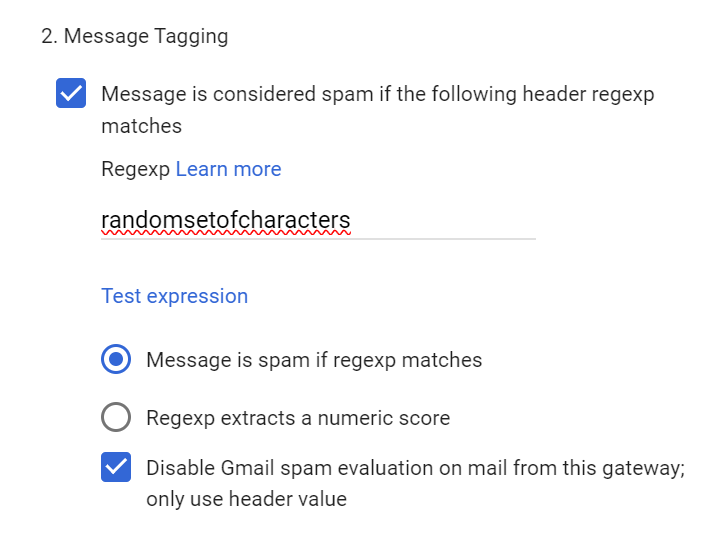
3. In the same menu, go to "Inbound Gateway". Add Lucy IPv4, activate Message Tagging, add a symbol set to the Regular Expression field, select "Disable Gmail spam evaluation on mail from this gateway", and save.

   <figure><img src="https://3536856424-files.gitbook.io/~/files/v0/b/gitbook-x-prod.appspot.com/o/spaces%2FVYPsDfg76rUuy4DWfSsJ%2Fuploads%2FdTgT86eNJmNbZTGLWDqB%2Fimage.png?alt=media&amp;token=e3369b1a-c77d-4dc2-a7de-b52cb1ee3667" alt="" width="360"><figcaption></figcaption></figure>

**Microsoft 365 (O365):**

1. Open the Microsoft 365 Defender portal -> `security.microsoft.com`
2. Go to Email & Collaboration > Policies & Rules > Threat Policies.
3. In Advanced Delivery, under Phishing Simulation, click "Edit" to add the sending domain, the IP of Lucy, and the simulation URL.<br>

<figure><img src="https://3536856424-files.gitbook.io/~/files/v0/b/gitbook-x-prod.appspot.com/o/spaces%2FVYPsDfg76rUuy4DWfSsJ%2Fuploads%2FXGPcKs5vYorbgUQhhPdC%2Fimage.png?alt=media&amp;token=d3f7050f-1789-4738-afc9-93db67b1789a" alt="" width="375"><figcaption></figcaption></figure>

<br>


---

# Agent Instructions
This documentation is published with GitBook. GitBook is the documentation platform designed so that both humans and AI agents can read, navigate, and reason over technical content effectively. Learn more at gitbook.com.

## Querying This Documentation
If you need additional information that is not directly available in this page, you can query the documentation by asking a question.

Perform an HTTP GET request on the following URL with the `ask` and `goal` query parameters:

```
GET https://wiki.lucysecurity.com/guides/quick-guides/create-your-first-campaign/whitelisting.md?ask=<question>&goal=<user_goal>
```

`ask` is the immediate question: it should be specific, self-contained, and written in natural language.
`goal` is what the user is ultimately trying to achieve, the reason they need the answer. Sharing it helps GitBook give you a better, more relevant answer. A goal is most helpful when it describes the outcome the user wants rather than restating the question. For example, with `ask=how do I create an API token`, a goal like `automate deployments from our CI pipeline` lets GitBook tailor the answer to that use case.

The response will contain a direct answer to the question and relevant excerpts and sources from the documentation.

Use this mechanism when the answer is not explicitly present in the current page, you need clarification or additional context, or you want to retrieve related documentation sections.